Monday, December 10, 2018

10 Holiday Gift Ideas Under $50

This year, we're bringing you 10 Holiday Gift Ideas, all under $50!

Everyone is sure to love these great Tech Gifts and you're going to love the price! There's something for everyone!


Logitech G203 Prodigy Gaming Mouse 1. Logitech G203 Prodigy Gaming Mouse - $48.95
KALIBER GAMING HVER RGB GAMING  2. Kaliber HVER Aluminum  Gaming Keyboard - $49.95
Gaming Headset 3. Roccat Aluma Premium Performance In-ear Headset - $26.95

Hesh 2.0 Headphones with Mic (Black) 4. Skullcandy Hesh 2.0 Wired Headphones - $38.95
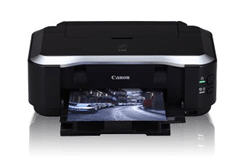
Canon PIXMA MG3620 Inkjet Multifunction Printer - Color - Photo Print - Desktop 5. Canon PIXMA MG3620 Inkjet Multifunction Printer - $36.95
Echo Dot (3rd Generation) Smart Speaker - Wireless Speaker - Charcoal 6. Amazon Echo Dot (3rd gen.) Wireless Speaker - $ 49.99
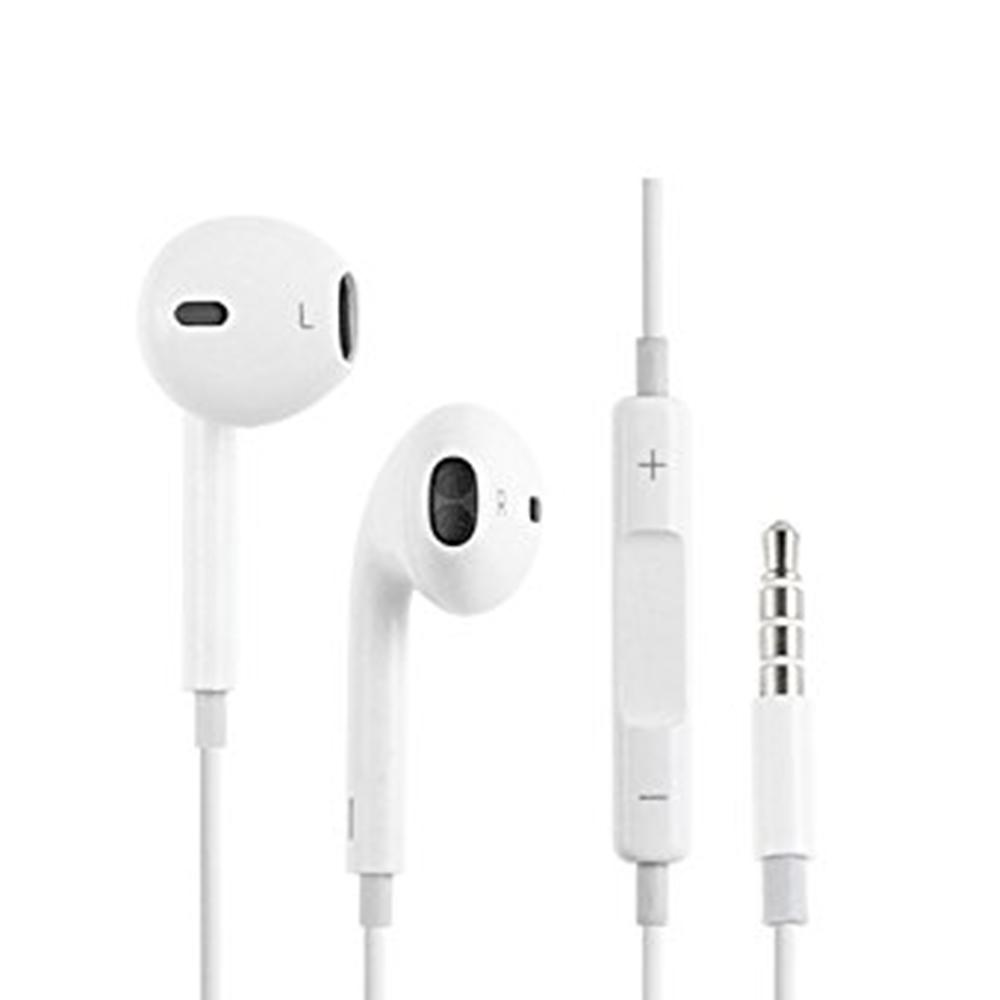
7. Apple Earpods 3.5mm Headset - $29.00
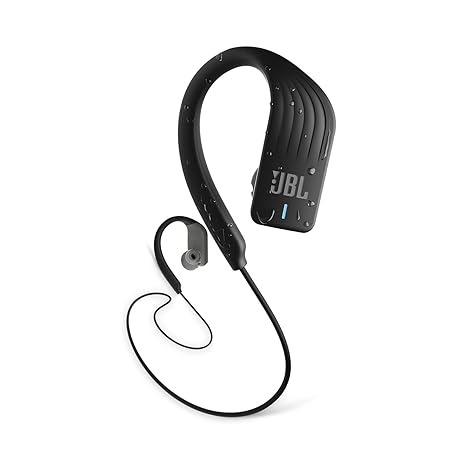
Image result for jbl endurance sprint 8. JBL Endurance Sprint Bluetooth Headset - $49.95
A250 2.1 Speaker System (Black) 9. Creative A250 2.1 Speaker System - $27.95
SteelSeries Nimbus Wireless Controller (Wireless - Bluetooth - iPhone, iPad mini, iPad, iPod touch, Mac, Apple TV, iPad Pro - Black) 10. Steelseries NIMBUS Wireless Game Controller - $49.99

Check out more Holiday Gift Ideas at the UTD Tech Store inside the Visitor Center Building or shop online at: www.utdtechstore.com

Tuesday, May 22, 2018

Move Your OneDrive Folder

Ever want to change the location of your Microsoft OneDrive folder? 

We'll show you how!

  1. Right click the OneDrive taskbar icon and select Settings.
    1. select settings 
  2. Click the Unlink OneDrive button under the Account tab. A login screen appears, but you should ignore it for now.
    1. click Unlink OneDrive 
  3. Launch File Explorer.
    1. launch file explorer 
  4. Navigate to and select the OneDrive folder. Unless you moved it previously, it is probably directly under your C:\Users\[your username]\ (ex: C:\Users\Avram) folder. You can get there either by clicking through your C drive or entering the folder name in your address bar.
    1. select OneDrive 
  5.  Click the Move to button on the Home tab.
    1. select Move to 
  6. Select Choose location.
    1. click Move 
  7. Select the new location and click Move. If you're moving the folder to another drive, select the drive letter.
    1. click Move 
    2. Depending on the amount of data in your OneDrive folder, it can take several minutes to complete. Wait for the transfer to complete before proceeding to the next step.
  8.  Enter your email address into the OneDrive app window.
    1. sign in 
  9. Select Personal of Work of School (depending on which type of account you have) if prompted to decide why you're signing in.
    1. select Personal 
  10.  Enter your password and click Sign in.
    1. Sign in 
  11. Click "Change location."
    1. change location 
  12. Navigate to the location where you moved the OneDrive folder and click Select Folder.
    1. select folder 
  13. Click Use this location.
    1. Click use this location 
  14. Click Next in the OneDrive window.
    1. click Next 
  15. Select which folders to sync (or sync all) and click Next.
    1. click Next 
  16. Click Open my OneDrive folder or close the window.
    1. Open my onedrive folder 

Congratulations! You have successfully moved your Microsoft OneDrive folder!